

Settings
Every iRaceDeck key has its own settings in the deck software’s Property Inspector, but many settings apply to the whole plugin: your key bindings, the appearance defaults every key inherits, the Race Engineer’s voice and callouts, timing tunables, SimHub, and so on. Those used to live inside each Property Inspector — repeated in every one, stacked in a narrow panel. The Settings window is their home now.
Opening It
Section titled “Opening It”Select any iRaceDeck key. Directly under that key’s own settings — above Title Overrides, so you rarely have to scroll for it — is a small button with a cog: iRaceDeck Settings. Click it and the window opens on top of the deck software.
That spot is also the dividing line in the panel: everything below the button is about that one key (its title, colours, border, graphic scale, and the key bindings it uses), and everything behind the button applies to every key.
On a Stream Deck+ dial the button is in the same place, under the dial’s own settings.
It is a real window — its own entry in the taskbar, resizable, and it remembers its size and position for next time. It closes itself when the deck software shuts down or restarts.
The Tabs
Section titled “The Tabs”The sidebar has one tab per area. Everything here applies to the whole plugin; the appearance defaults are the only ones an individual key can override in its own Property Inspector.
Getting Started
Section titled “Getting Started”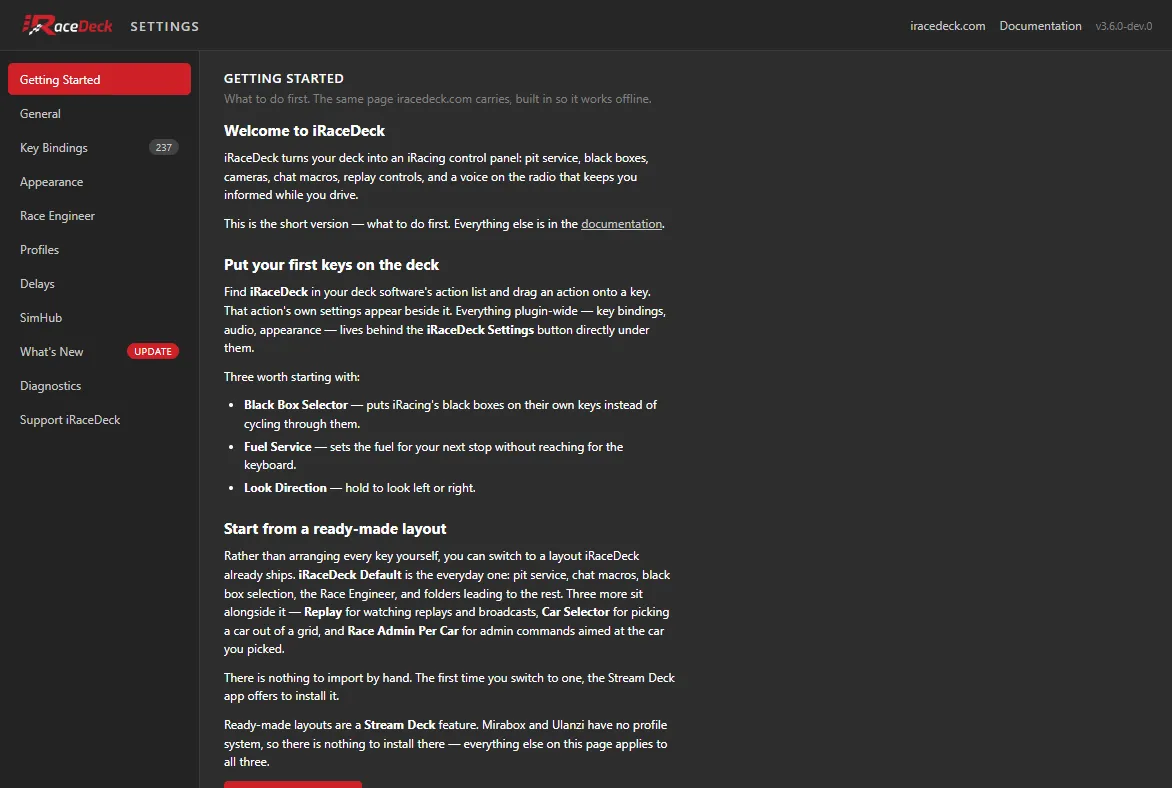
The First Steps page, built into the plugin so it works without an internet connection — what to do first, which layout to start from, and what the Race Engineer is.
It opens by itself once, the first time you run iRaceDeck, and then never again. Upgrading from an earlier version does not count as a first run: the page is for people who have not used iRaceDeck before, and an installation that has started up even once before is left alone. It also never opens while iRacing is running, so it cannot appear over a live session.
The tab stays here afterwards, so you can come back to it whenever you like.
Three of its steps do something rather than only explain it: one press turns on the Race Engineer (and plays a line so you know your audio works), one opts you in to seeing what changed after an update, and one turns on Focus iRacing if you happen to have it set to Never. The first two show what they will do while the setting is off and confirm it once it is on; the Focus iRacing suggestion appears only if that setting is Never, so on a fresh installation — where it is already on — you will not see it at all.
General
Section titled “General”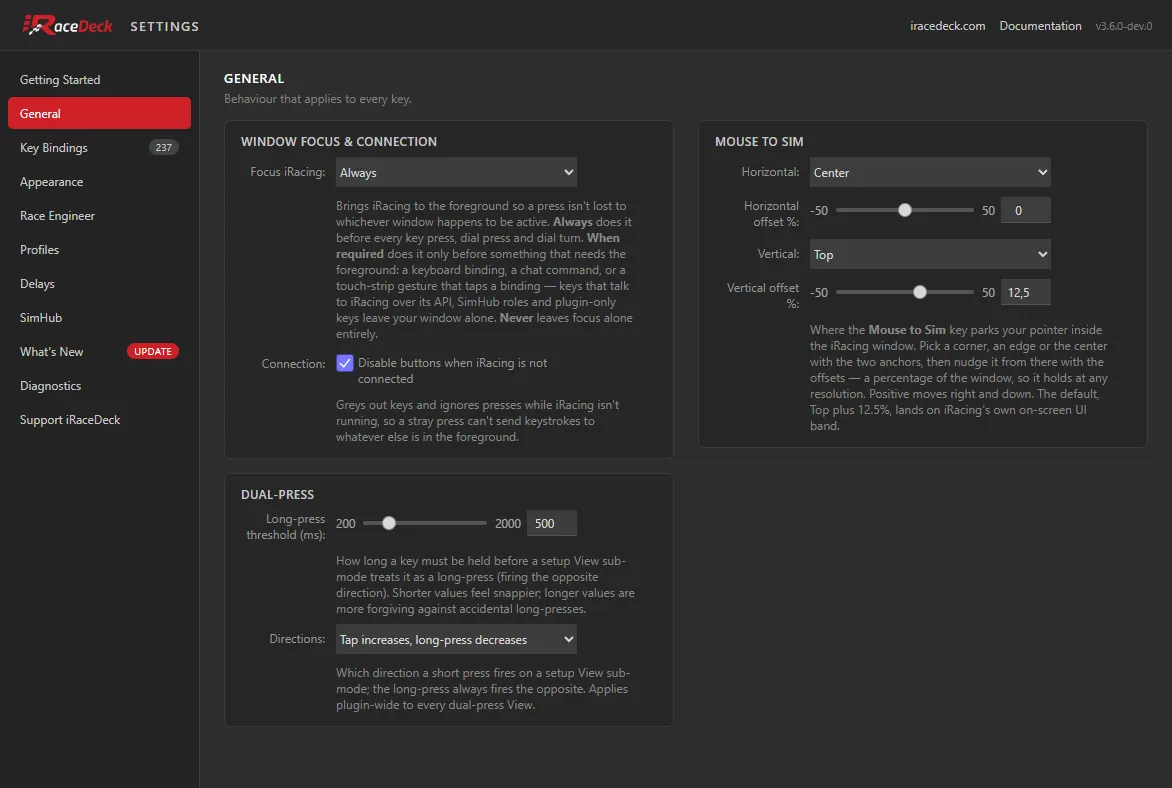
Behaviour that affects every key you press.
Focus iRacing brings iRacing to the foreground before iRaceDeck sends input, so a press isn’t lost to whatever window happened to have focus. Always (the default) does it before every press; When required does it only before a keyboard binding, a chat command or a touch-strip gesture that taps a binding — a key that talks to iRacing over its own API arrives whatever has focus, and a binding set to a SimHub role is handed to SimHub rather than pressed here, so neither pulls the sim over your window; Never turns it off. See Focus iRacing Window.
Disable buttons when iRacing is not connected greys out your keys and ignores presses while iRacing isn’t running, so a stray press can’t fire keystrokes into whatever else is in the foreground.
Mouse to Sim decides where the Mouse to Sim key parks your pointer inside the iRacing window. Pick a Horizontal and a Vertical anchor — a corner, an edge or the centre — then nudge the pointer away from it with the two offset sliders, which are percentages of the window (positive moves right and down), so your target holds its place at any resolution. The default, Center with Top plus 12.5%, lands on iRacing’s own on-screen UI band, which is where the key has always put the pointer.
Dual-press governs the setup keys that do one thing on a tap and the opposite on a hold. The long-press threshold is how long you must hold before it counts as a hold — shorter feels snappier, longer is more forgiving if you catch keys accidentally. Directions picks which way a tap goes; the hold always fires the opposite.
Key Bindings
Section titled “Key Bindings”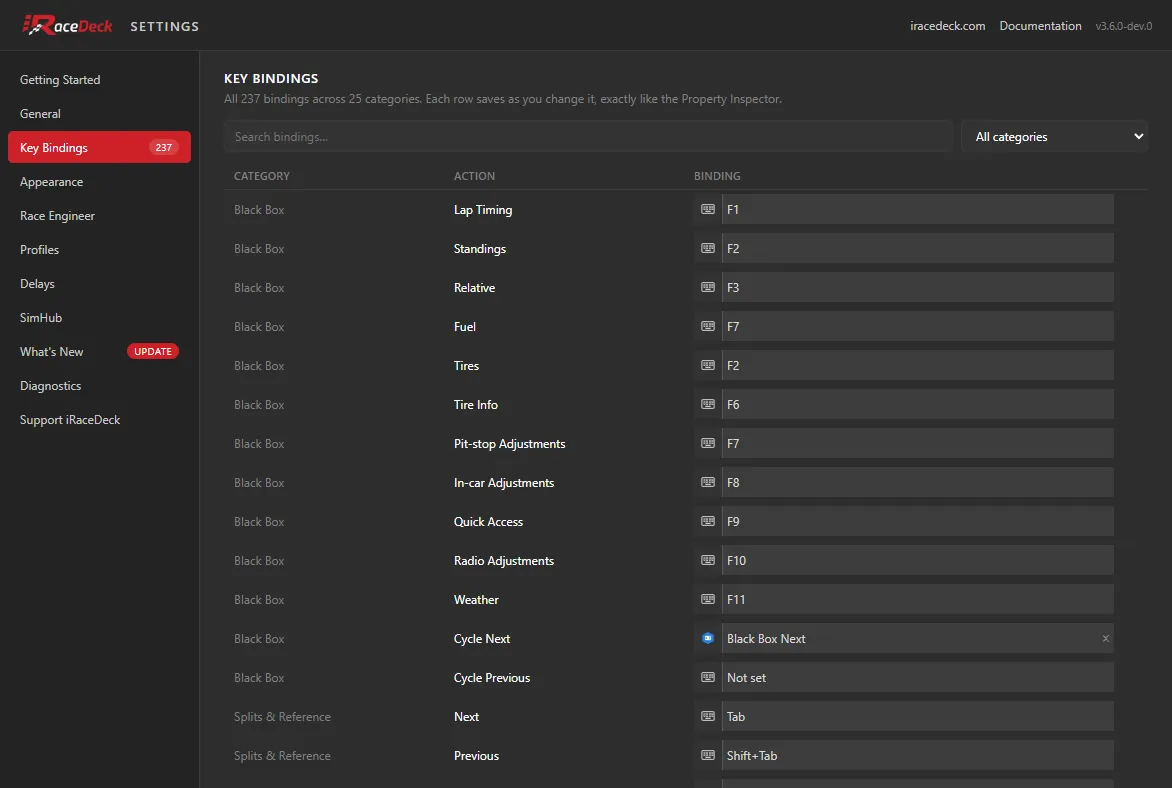
Every binding in the plugin, in one searchable table — search by action or category, or filter to a single category with the dropdown. Each row saves the moment you change it, exactly as it would in a Property Inspector.
Each row takes either a keyboard shortcut or a SimHub Control Mapper role; the small icon at the left of a row switches between the two. A binding set here is the same setting the action’s own panel shows, so there is never a need to set it twice.
The same bindings also appear in each key’s Property Inspector, filtered to just that action — see What Stays in the Property Inspector.
Appearance
Section titled “Appearance”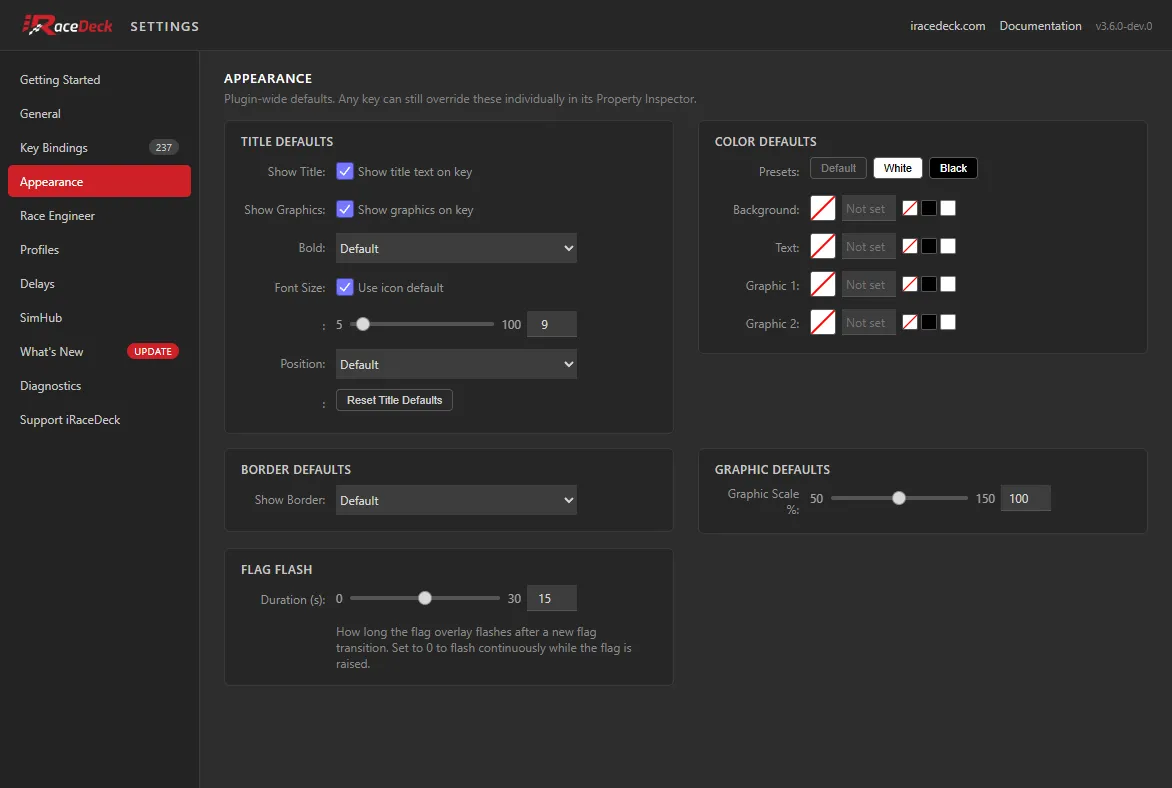
The look every key inherits. Anything set here is a default: a key that has its own override in its Property Inspector keeps it.
- Title defaults — whether keys show their title text and graphics at all, plus bold, font size and vertical position. Default means “leave it to the icon”, which is usually what you want; icons whose title is part of the artwork ignore these deliberately.
- Colour defaults — background, text and the two graphic slots, with Default / White / Black presets as a quick way to recolour the whole plugin. Some icons lock individual slots so their semantic colours (a green arrow, a red indicator) survive a preset.
- Border defaults and Graphic scale — the border drawn around keys, and how large the artwork is drawn inside them (50–150%).
- Flag flash — how long the flag overlay flashes after a new flag. Set it to
0to keep flashing for as long as the flag is out.
Race Engineer
Section titled “Race Engineer”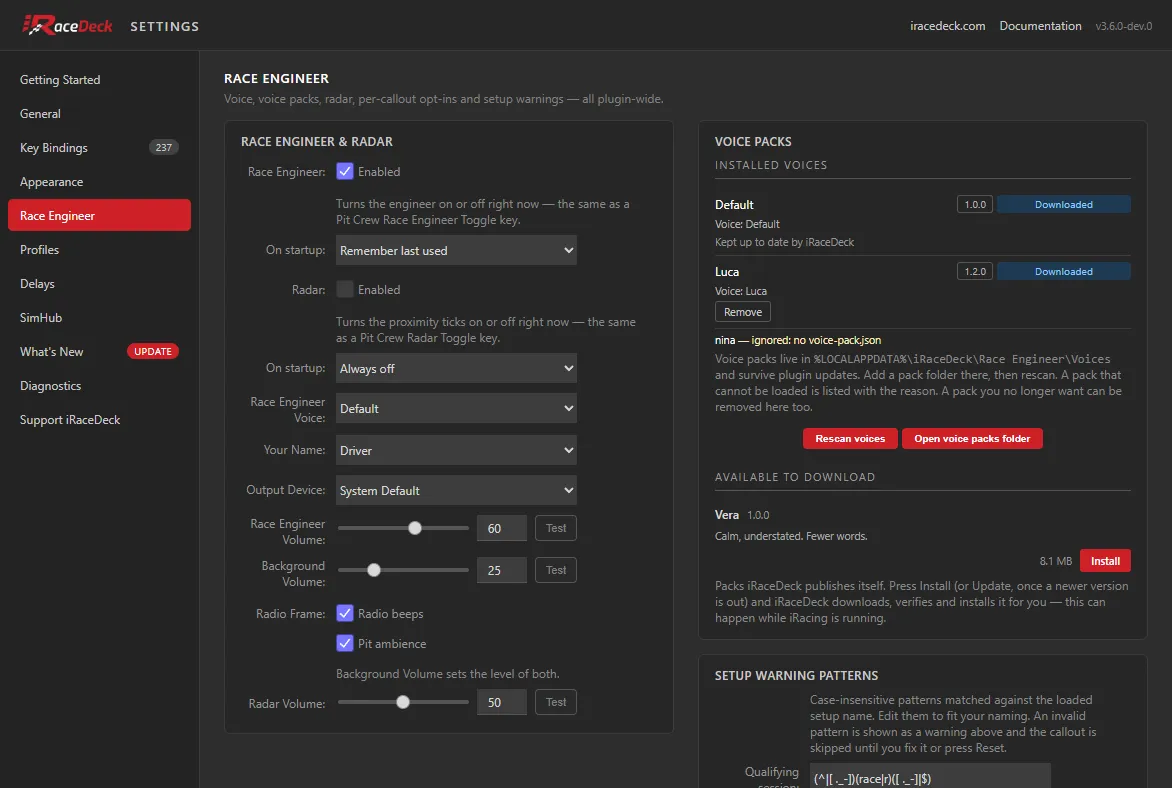
Everything about the Race Engineer and the radar: the live on/off toggles and their startup policies, the voice, your name, the output device and the three volumes with Test buttons beside them, the two halves of the radio frame, the voice packs you have installed and the ones available to download, the setup-warning patterns, and the per-callout opt-ins.
Race Engineer Voice and Your Name choose who talks to you and what they call you. iRaceDeck’s own voices head the voice list, as iRaceDeck: Default and, once installed, iRaceDeck: Default (Short callouts); every other pack follows — see Race Engineer Voices. Output Device sends the engineer to a specific device — useful if you want him in your headset while the sim runs on speakers. While iRacing is running with the Race Engineer or the Radar on, iRaceDeck keeps that device open for the whole session, so it stays listed in the Windows Volume Mixer between callouts; with iRacing closed it opens the device only while a sound plays, which leaves the PC free to sleep. The three volumes are independent: Race Engineer is the voice, Background the radio beeps and the pit ambience around it, Radar the proximity ticks.
Radio Frame is the pair of checkboxes under the Background slider. Every spoken line is framed by the voice’s own radio frame — the one its callout script defines. In iRaceDeck’s own voices, Default and Default (Short callouts), that is a short beep as the channel opens, the pit-lane atmosphere running underneath while the engineer talks, and a beep as it closes; a voice pack may frame its calls its own way. A voice with no callout script says nothing at all, so there is no frame to hear either. Radio beeps and Pit ambience switch those two halves separately — turn one off and only that half goes; the words are untouched, and the other half keeps playing. Both are on by default, and Background still sets the level of whichever is on. The frame only ever wraps speech: a callout that has nothing to say in the voice you are using gets no beeps either, so you never hear a pair of clicks around silence. Callouts that already play without the frame — the terse pit-box nudges, the spotter, the corner names — are unaffected by either switch.
The Test button beside Background plays the selected voice’s own radio frame, as your two switches leave it, with a short silence where the words would go — so a voice pack with its own beeps previews those beeps, not iRaceDeck’s. With both switches off there is nothing to hear. A voice that defines no radio frame previews iRaceDeck’s built-in beeps and pit ambience instead. The test always gives way to the engineer: pressing it while he is talking does nothing, and a callout that comes in while the test is playing cuts it short.
Installed Voices lives in the Voice Packs card next to the Race Engineer card (below it when the window is narrow), above Available to Download. It lists the voice packs iRaceDeck has loaded, each with its version, where it came from, and the voice or voices it provides — so two packs with the same name that provide different voices are easy to tell apart, and each voice is named as it is in the Race Engineer Voice dropdown, less any name in front of it there. Anything it could not load is listed underneath with the reason why — so a pack you dropped into the folder that is not showing up in the dropdown tells you what is wrong with it. Rescan voices below it picks up a pack you have just added, without restarting anything. See Race Engineer Voices for where packs live, how to install one, and what a pack’s callout script decides.
A voice that is listed but has no callout script — a pack built before scripts existed, or one whose script is missing — is still selectable, but every callout is skipped in it — every callout comes from the script — so the engineer goes quiet. While such a voice is the one selected, a banner at the top of this window and of every key’s Property Inspector names it, so a quiet engineer is never a mystery: reinstall the pack, or pick another voice. The banner is re-checked after every rescan and every change of voice, and disappears by itself once the selected voice has a script.
Callouts is the long list at the bottom: one checkbox per thing the engineer can tell you, grouped by family — flags, incidents, fuel, spotter and the rest. Turning one off silences that call without touching any other, and takes effect immediately; it never cuts off a callout already playing.
Race Engineer and Radar: Now Versus On Startup
Section titled “Race Engineer and Radar: Now Versus On Startup”The Race Engineer and the radar each have two separate controls, because they answer two different questions.
Enabled is live. Ticking it turns the feature on or off there and then — the same thing a Pit Crew Race Engineer Toggle or Radar Toggle key does, including the spoken “resuming” / “going silent” acknowledgment. Press the key and the checkbox follows; tick the checkbox and the key’s icon follows.
On startup decides what the feature comes up as the next time the plugin starts, and never touches the session you are in:
- Remember last used — it comes back however you left it.
- Always on — every session starts with it on, whatever you did last time.
- Always off — every session starts with it off.
So you can run with the engineer on for the rest of tonight and still have it start silent tomorrow, without the two settings fighting each other.
If you upgraded from an earlier version, your old On startup checkbox carries over as Always on or Always off, so nothing changes until you pick something else.
Profiles
Section titled “Profiles”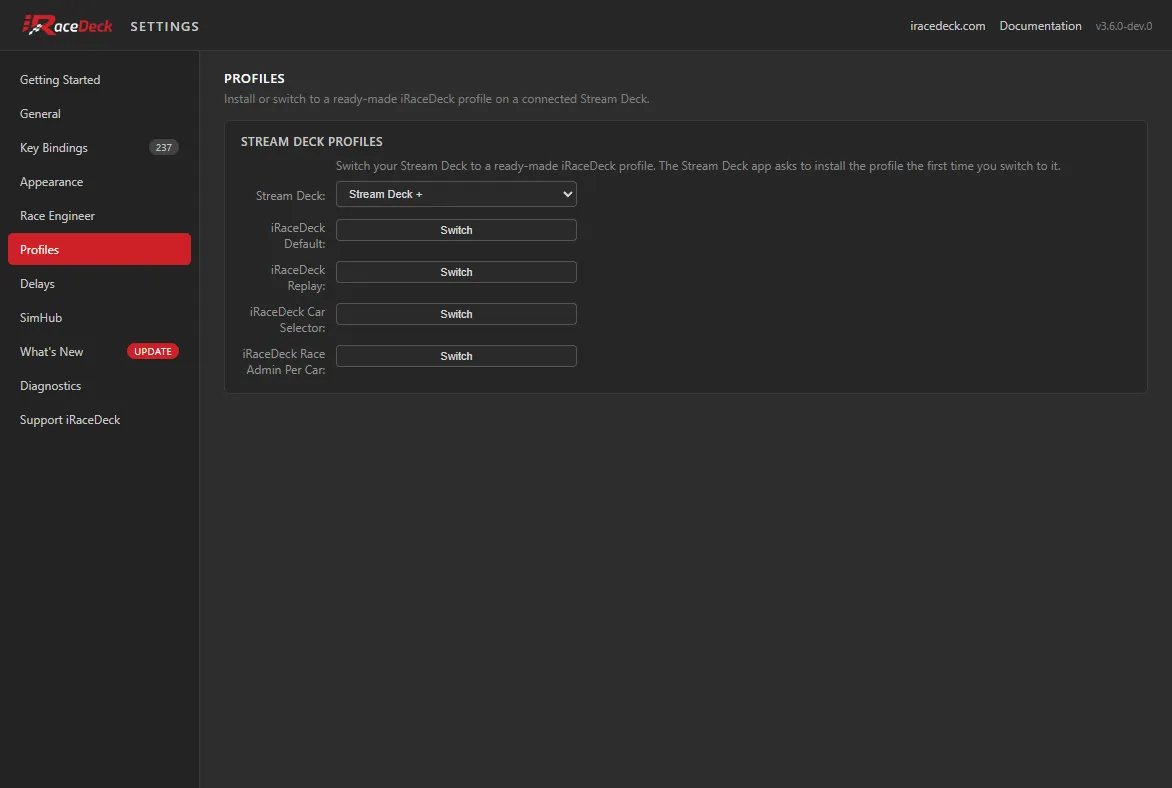
Stream Deck only. Mirabox and Ulanzi Deck have no profile system, so this tab is not shown there.
Switch a connected Stream Deck to one of the ready-made iRaceDeck layouts. Because the window is not tied to a particular deck the way a Property Inspector is, it asks which one to switch — with a single deck connected it is already picked for you.
The Stream Deck app asks to install a profile the first time you switch to it. Every bundled profile is listed, whichever deck you pick: each one ships as a variant per supported device, and iRaceDeck resolves the variant that fits the deck you selected when you press Switch.
Delays
Section titled “Delays”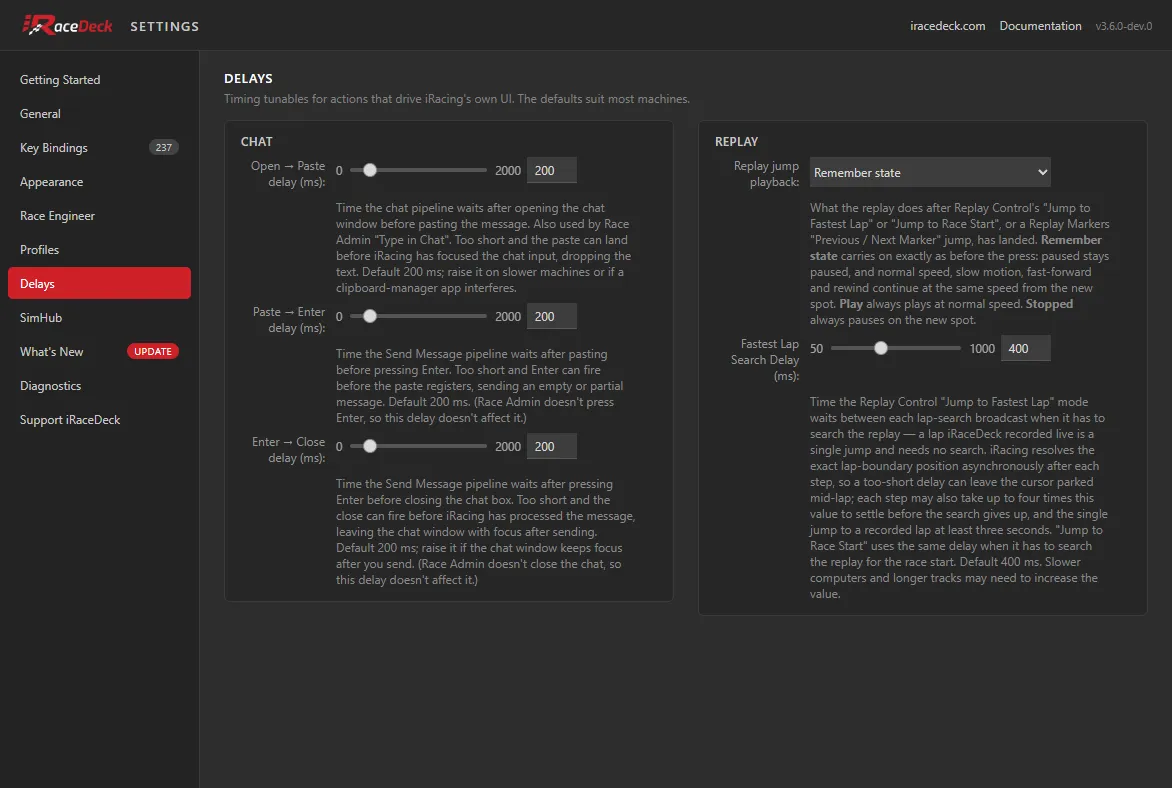
Timing for the actions that drive iRacing’s own interface rather than talking to it directly. The defaults suit most machines — come here only if something misbehaves.
The three Chat delays space out the steps of sending a chat message: opening the box, pasting, pressing Enter, closing. Two symptoms worth recognising: text arriving empty or half-typed usually means the paste-to-Enter delay is too short, and the chat box keeping focus after you send means the Enter-to-close delay is. Raise them on a slower machine, or if a clipboard manager gets in the way.
Replay jump playback is the one setting on this tab that is a preference, not a timing. It chooses what the replay does once a jump has landed — Replay Control’s Jump to Fastest Lap and Jump to Race Start, or a Replay Markers Previous / Next Marker jump from a key or the dial:
- Remember state — the default. The replay carries on exactly as it was before the press: paused stays paused, and normal speed, slow motion, fast-forward and rewind continue at the same speed from the new spot.
- Play — the replay always plays at normal speed.
- Stopped — the replay always pauses on the new spot.
A replay that is moving is paused for the jump, and the setting is applied only once it has arrived. A jump across a long replay takes iRacing a while, and it is waited for as long as iRacing is still getting there. If the replay stops short of the new spot and stays there for three seconds (or four times Fastest Lap Search Delay, if that is longer), it is left paused where it stopped, whatever this setting says. Pressing another Replay Control key during a jump cancels it, and that key’s command stands: a speed you pick mid-jump is not overwritten. Replay Control’s other jumps — Next / Previous Session, Lap and Incident, Jump to Beginning, Jump to Live and Jump to My Car — do not follow this setting.
Fastest Lap Search Delay is how long Replay Control’s Jump to Fastest Lap waits between steps when it has to search the replay for the lap — a lap iRaceDeck recorded while it was driven is a single jump and needs no search. iRacing resolves each lap boundary after the fact, so too short a delay leaves the cursor parked mid-lap, and each step may take up to four times the delay to settle before the search gives up (the single jump to a recorded lap waits at least three seconds). Longer tracks and slower machines may need more than the default. Jump to Race Start uses the same delay when it has to search the replay for the race start.
SimHub
Section titled “SimHub”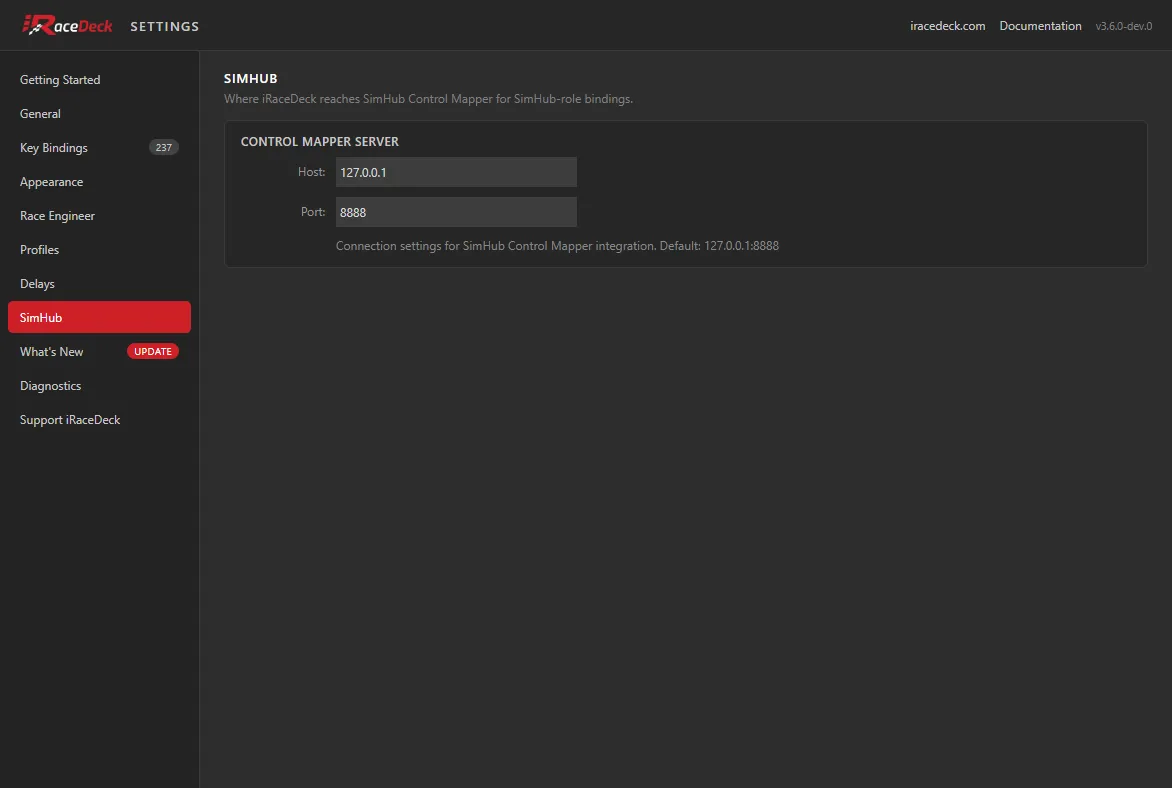
Where iRaceDeck reaches SimHub Control Mapper, for bindings you have set to a SimHub role rather than a keyboard shortcut. The default 127.0.0.1:8888 is right when SimHub runs on the same PC; point it elsewhere if SimHub lives on another machine.
This only matters if you actually use SimHub roles — a purely keyboard-bound setup can ignore this tab entirely. For what a SimHub role is and how to set one up, see Binding modes: keyboard vs SimHub.
What’s New
Section titled “What’s New”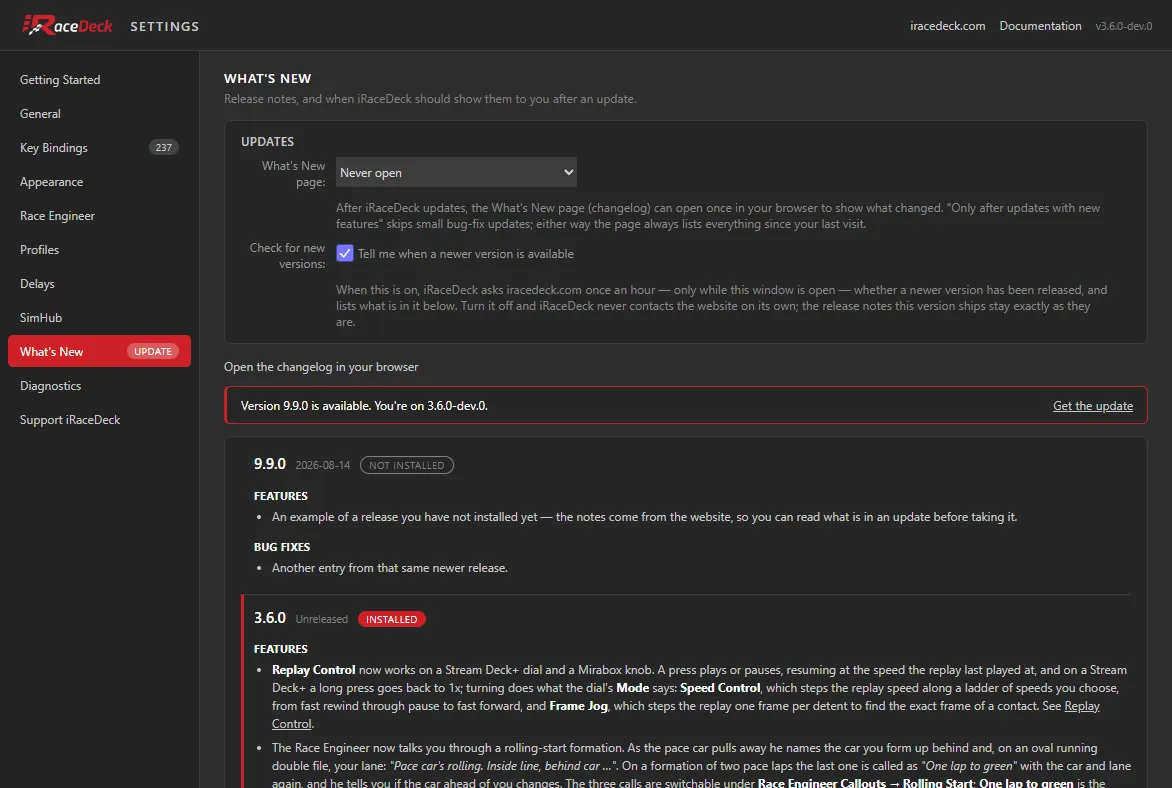
The Updates card holds two settings, one for each side of an update. What’s New page controls when the changelog opens by itself once iRaceDeck has updated:
- Every update — after any new version.
- Only after updates with new features — the default; small bug-fix releases pass silently.
- At most once a month — a quieter option if updates land often.
- Never — it never opens on its own.
Whichever you pick, the page always lists everything since your last visit, so a quieter setting never means missing anything — see the What’s New page.
Check for new versions lets iRaceDeck ask this website, while the Settings window is open, whether a newer version has been released. When it finds one you get an UPDATE badge on the tab, a banner naming the new version and a link to the downloads page, and the newer releases listed above yours marked Not installed — so you can read what is in an update before you take it. It asks at most once an hour, only while the window is open, and never at any other time. Turn it off and iRaceDeck never contacts this website on its own; everything below still works exactly as it does now.
Below the settings are the release notes for every version of iRaceDeck, newest first. The ones up to and including your version ship inside the plugin rather than being fetched, which means three things:
- They work offline, and behind a firewall. If the update check cannot reach the website — no internet, a firewall, or the option switched off — this list is all you see, and nothing about the tab breaks.
- The version you are running is marked Installed, so what you have is unambiguous. The window header shows that version too.
- Nothing is described as installed that you do not have. (A test build whose notes are not published yet says so above the list.)
Open the changelog in your browser opens the full changelog on this website.
Diagnostics
Section titled “Diagnostics”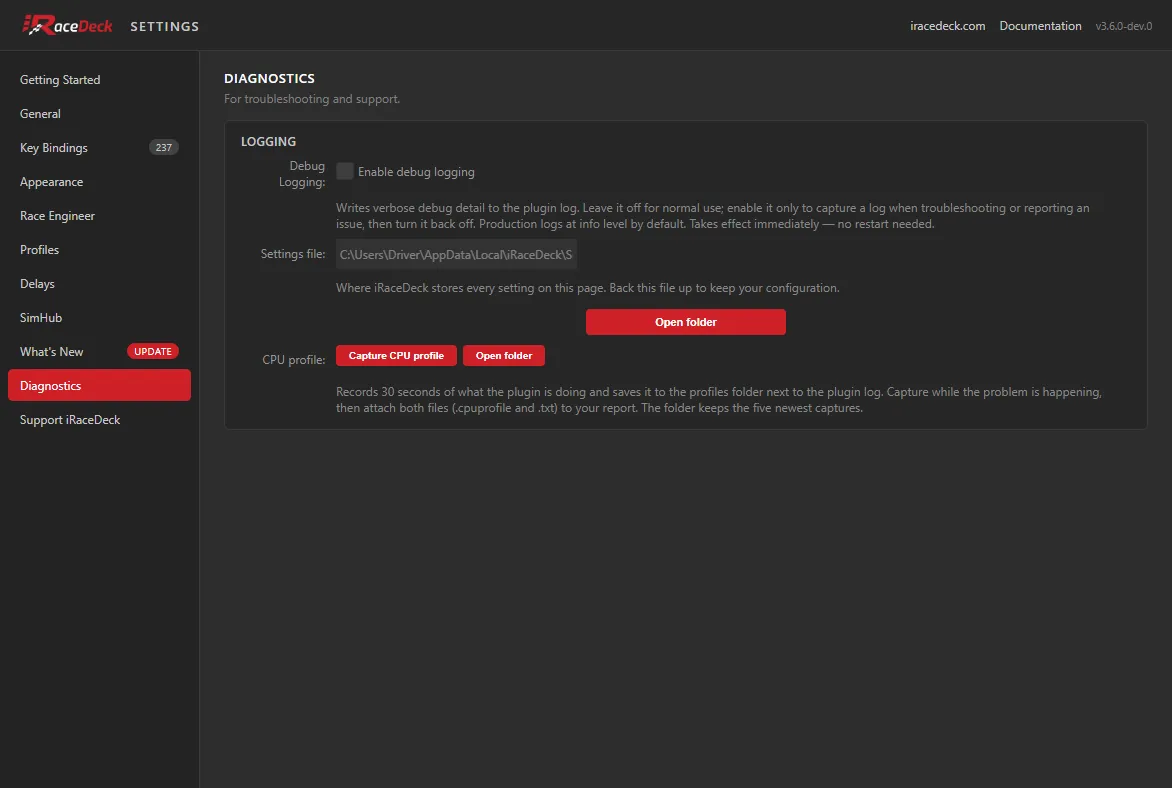
Enable debug logging writes verbose detail to the plugin log. Leave it off for normal use — it takes effect immediately, with no restart, so switch it on only to capture a log when reporting a problem, then switch it back off.
Settings file shows exactly where your configuration lives, with an Open folder button that reveals it in Explorer. Copying that one file backs up everything on this page — see Where Your Settings Are Stored.
Capture CPU profile records 30 seconds of what iRaceDeck is doing and saves it as two files in a profiles folder next to the plugin log: a .cpuprofile that opens in Chrome’s DevTools, and a .txt summary listing where the time went. Press it while the problem is happening — a slow deck, or high CPU use in Task Manager — and the line under the button counts down, then shows the saved file’s name. Open folder beside it opens the profiles folder; attach both files to your report. The folder keeps the five newest captures and deletes older ones. See If iRaceDeck uses a lot of CPU.
Support iRaceDeck
Section titled “Support iRaceDeck”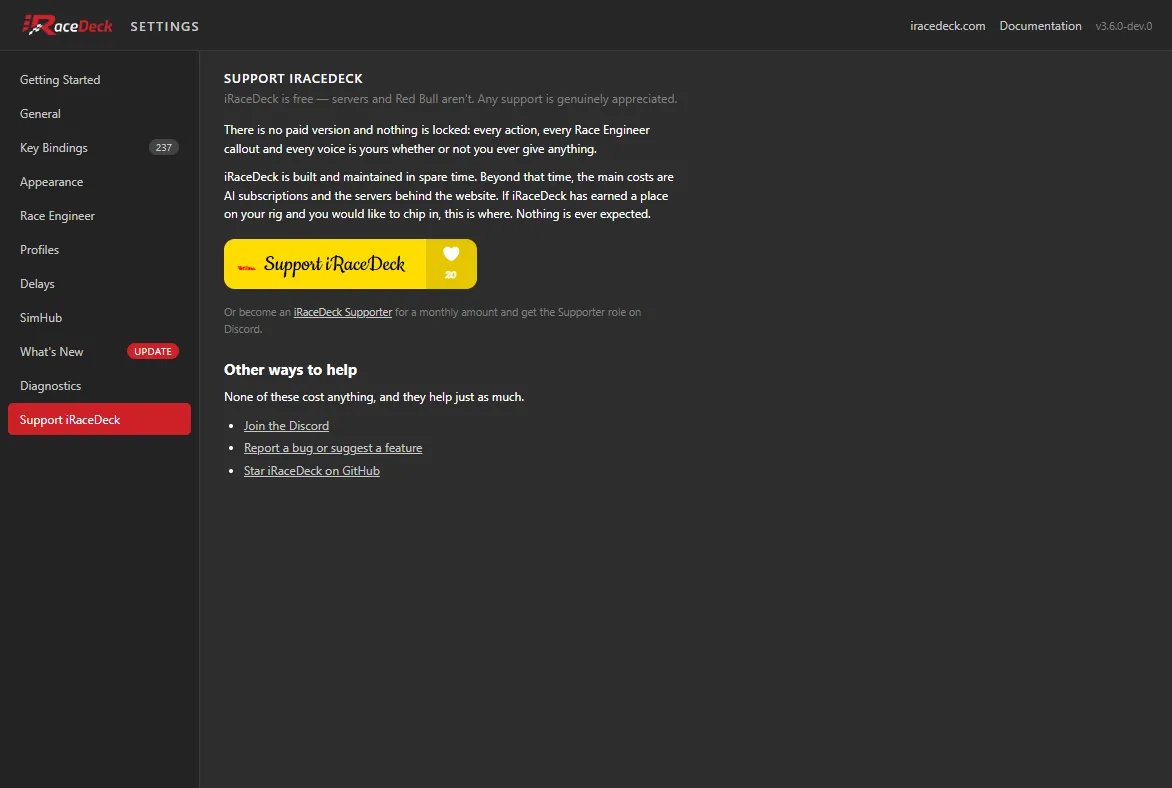
iRaceDeck is free, with no paid version and no locked features. This tab says what it costs to keep going and gives you a way to chip in if you want to. The Support iRaceDeck button opens the project’s Buy Me a Coffee page in your browser, and the link under it goes to the iRaceDeck Supporter membership, which comes with the Supporter role on Discord. Nothing is ever expected.
The tab also lists ways to help that cost nothing: joining the Discord, reporting a bug or suggesting a feature, and starring iRaceDeck on GitHub.
It is the last tab in the sidebar, and nothing else in iRaceDeck points you at it: no banner, no badge, no reminder.
The button is an image served by Buy Me a Coffee, which is why it carries a supporter count. It is the only thing the Settings window loads from another site, and it is loaded when you open this tab, not when the window opens. Without an internet connection the button shows as a text link and works the same.
What Stays in the Property Inspector
Section titled “What Stays in the Property Inspector”A key’s Property Inspector is now about that key. It has its own settings at the top, then the iRaceDeck Settings button, then its per-key overrides — title, colours, border, graphic scale, flags overlay — and one section at the bottom:
- iRaceDeck Settings — the small cog button directly under the action’s own settings: the way through to everything on this page.
- Key Bindings — at the bottom: the bindings that particular action uses, and nothing else. They are plugin-wide settings, but they are the ones you actually want in front of you while setting a key up, so they stay. The same bindings appear in full on the window’s Key Bindings tab.
Actions that use no key bindings at all say so instead of showing an empty section.
Bindings edited in either place are the same settings: change one and the other updates live. Both surfaces read and write the same file — see Where Your Settings Are Stored.
If the Window Doesn’t Open
Section titled “If the Window Doesn’t Open”Clicking iRaceDeck Settings should always produce a window. If it doesn’t, iRaceDeck tells you why: a banner appears in every iRaceDeck Property Inspector describing what failed. There are two, they mean different things, and each shows up where it belongs.
“iRaceDeck could not start its settings service.” The more likely of the two, shown as a red error banner at the top of the panel — because this one is not just about the button. The window is a page iRaceDeck serves to itself on your own PC, so it needs a local connection — and something on this machine stopped it opening. A firewall or security suite blocking local connections is the usual cause; another program already occupying the port is the other.
This one has a consequence worth knowing about, which is why the banner spells it out: while it lasts, settings changed in a Property Inspector do not take effect either — key bindings included. That same local connection is how a Property Inspector reaches the plugin. Without it a panel still opens and still shows your settings, and a change you make there still looks saved, but it never arrives. Take the banner as “iRaceDeck is not accepting settings changes right now” rather than only “the window won’t open”. What you configured earlier is untouched and your keys keep working normally.
The iRaceDeck Settings button is marked as unusable at the same time, with a short note directly above it — “The Settings window cannot open while iRaceDeck’s settings service is not running. See the error at the top of this panel.” — so you can see the button will not work before pressing it.
“iRaceDeck could not open the Settings window.” Shown as a yellow warning directly above the button you just pressed, and much less serious. The service is running fine — what failed is iRaceDeck handing the page over to a browser: the chromeless app window in Edge or Chrome would not start, and passing the address to your default browser was refused as well. Everything else is unaffected, Property Inspectors included, so settings you change there apply as usual.
This one is rare, and it is worth knowing what it does not cover. iRaceDeck can tell that a browser refused to take the address; it cannot tell what happened afterwards, because nothing reports back once the address has been handed over. So a browser that accepts the request and then shows nothing produces no banner at all. If the button appears to do nothing and neither banner is showing, check whether a browser window opened behind another one, and see How It Works for what iRaceDeck tries.
To clear either one:
- Restart your deck software. Both conditions are re-checked on every start and on every click of the button, so a banner whose cause has gone disappears on its own — it is a live status, not a dismissible message.
- Check your firewall or security software for a rule blocking iRaceDeck, if it is the first banner.
Banners only ever describe the session you are in
Section titled “Banners only ever describe the session you are in”This is true of every iRaceDeck banner, not just these two. Warnings are not remembered between runs: iRaceDeck starts each session with none, and each one you see was raised by the copy of iRaceDeck that is running right now, about conditions it has checked itself. Nothing is ever restored from your settings file, and there is nothing stale to clear out by hand.
That makes a banner that comes back after a restart worth taking at face value — the cause really is still there — and it is why there is no dismiss button: dismissing a live status would only hide something that is still true. It also means a warning can be missing while its condition has not been ruled out yet. The Administrator-mismatch warning is the one to know about: iRaceDeck can only compare itself against a running iRacing, so after a restart that banner stays away until iRacing is up again, then reappears as soon as iRaceDeck connects to it if the mismatch is still there.
Whichever of the two failures you hit, its banner also names the full path to your settings file. It is plain text, so you can back it up by copying it, or edit it by hand as a last resort — but close your deck software first: while iRaceDeck is running it holds its own copy of your settings and will overwrite hand edits when it next saves.
Where Your Settings Are Stored
Section titled “Where Your Settings Are Stored”iRaceDeck keeps every setting on this page — and the key bindings shown in each key’s Property Inspector — in a file of its own, in your user profile, rather than in the deck software’s storage:
| Deck software | Settings file |
|---|---|
| Stream Deck | %LOCALAPPDATA%\iRaceDeck\Settings\Stream Deck\global-settings.json |
| Mirabox | %LOCALAPPDATA%\iRaceDeck\Settings\Mirabox\global-settings.json |
| Ulanzi Deck | %LOCALAPPDATA%\iRaceDeck\Settings\Ulanzi\global-settings.json |
The Diagnostics tab shows the exact path for your installation and has an Open folder button that reveals the file in Explorer.
The first time you start a version that stores settings this way, iRaceDeck copies your existing settings over from the deck software automatically — there is nothing to do. From then on your settings live with you rather than inside the deck software’s own storage, so they survive plugin updates and reinstalls. The window and the Property Inspectors share that one file, which is why a binding changed in either shows up in the other straight away. The deck software keeps a copy too: iRaceDeck refreshes it once every time the plugin starts, so nothing is taken away from it and an older iRaceDeck version installed later still finds your settings where it expects them. That refresh holds off while iRaceDeck is still waiting for the deck software to answer its first read of your existing settings, so a copy it has not read is left alone — and while it is waiting, a key’s settings panel falls back to the deck software’s copy, so set plugin-wide settings from the Settings window until the wait is over. If the answer never comes at all, iRaceDeck settles after a few startups for the settings it has and stops asking, and from then on it leaves the deck software’s copy untouched rather than overwriting something it was never able to read. That means the two are no longer kept in step on such a machine: your settings live in the file above, the deck software’s copy stays as it was, and an older iRaceDeck installed later would find that older copy rather than your current settings. Updating iRaceDeck makes it try once more — each newer version asks the deck software again, once, so a copy it could not read before is picked up if the answer arrives this time. If the deck software still does not answer, iRaceDeck keeps the settings you have and waits for the next newer version rather than asking on every startup. Reinstalling the same version, or going back to an older one, does not trigger another attempt. Deleting the file above also forces a fresh copy, but on a machine that has been running this way it is the worse option: your settings file is the current one and the deck software’s copy is older, so deleting yours replaces what you have now with what you had then.
To back up your configuration, copy that one file somewhere safe; to restore it, put it back and restart the deck software. Each deck ecosystem gets its own folder, so a Stream Deck and an Ulanzi Deck installation on the same PC never share settings.
If Your Settings File Has a Mistake in It
Section titled “If Your Settings File Has a Mistake in It”If you edit the settings file by hand and leave a mistake in it — a comma after the last entry is the usual one — iRaceDeck cannot use the file when it next starts. It does not throw your file away: it moves it aside, next to the original, as global-settings.corrupt-<date>.json, and replaces your settings with the copy the deck software keeps. That copy is normally refreshed every time the plugin starts, so it usually holds your settings as they were at the last start that went well — which means changes made since then, including the hand edits themselves, are missing. If the deck software has no copy, you get the defaults instead.
A red banner at the top of the Settings window and of every key’s Property Inspector tells you this happened. It names the line and column where the mistake is — for a stray comma that is the line just after it, where the closing brace sits — along with the full path of the file that was set aside. To get your changes back:
- Open the set-aside file in a text editor and fix the mistake at, or just before, the line and column the banner names.
- Quit your deck software completely, including from the system tray — closing its window leaves it running, and it would overwrite your fix.
- Rename the fixed file to
global-settings.json, replacing the one already in that folder. - Start your deck software again.
The banner only describes the start that found the mistake. If you restart before fixing the file, the next start finds a valid settings file — the one iRaceDeck just wrote — and shows no banner, but your set-aside file stays in the same folder until you delete it.
How It Works
Section titled “How It Works”The plugin serves the window itself, on your own machine only (127.0.0.1), and opens it as a chromeless app window in Microsoft Edge or Google Chrome — whichever is installed — so it looks and behaves like a program window rather than a browser tab. If neither browser is found, it opens in your default browser as a normal tab instead; everything works the same, it just has a tab bar.
The window runs in its own private browser profile, separate from your everyday browsing, so nothing about it — cookies, extensions, sign-ins — is shared with your normal browser.
Security
Section titled “Security”Because the window is a local web page, the plugin only answers requests carrying a secret it issued itself: it generates a fresh token when it starts serving (once per plugin run) and hands it to the window it opens and to iRaceDeck’s own Property Inspectors so they can reach the plugin. Anything without it is refused, and nothing is reachable from outside your PC. Every setting written from the window goes through the plugin, the same way it would if a Property Inspector had written it — so the window can never store anything the plugin itself wouldn’t.